Urban VPN Extension Edge: How to Install and Use It
Learn how to find, install, and use the Urban VPN extension for Microsoft Edge, plus what to consider before relying on it.
If you’re looking for the Urban VPN extension for Edge, find Urban VPN Proxy in the Microsoft Edge Add-ons store, check that it is the listing you want, and select the option to install it. Once installed, use its toolbar icon to connect and choose an available location. The extension is a browser-based option for changing your apparent IP location, but it should not automatically be treated as a substitute for a full-device VPN or as a guarantee of privacy.
Compare what the Edge extension and full VPN app are designed to do
| Feature | Urban VPN Edge extension | Full VPN app |
|---|---|---|
| Runs in | Microsoft Edge | The device |
| Main use | Proxy traffic through the browser | VPN protection for device traffic |
| Browser traffic | Supported | Supported |
| Non-browser apps | Not covered by the extension | Covered when connected |
| Setup | Install from Edge Add-ons | Install the app for your operating system |
| Connection control | From the Edge toolbar | From the app |
| Location choice | Choose an available location | Choose an available location |
| Best fit | Browser-only use | Broader device coverage |
Compiled November 2026; check the provider's site for current details.
| VPN | Obfuscation | From / month | Plan | Free plan | Refund | Alipay | UnionPay | Crypto | Website opens in China | Trustpilot | |
|---|---|---|---|---|---|---|---|---|---|---|---|
 ZoogVPN | Turn on manually Shadow | $2.49/mo | 27 months: $59.99 | Yes | 7 days | ✓ | ✓ | ✓ | ✓ | Official site blocked; our special link opens (4.4 s) | 4.2/5 (195 reviews) |
 NordVPN | Turn on manually Obfuscated Servers / NordWhisper | $3.49/mo | 27 months: $94.23 | No | 30 days | ? | ✗ | ✓ | ✓ | ✗ Blocked | 4.2/5 (51,628 reviews) |
 ExpressVPN | ✓ On by default all servers | $3.00/mo | 28 months: $84 | No | 30 days | ✗ | ✗ | ✓ | ✗ | ✗ Blocked | 4.4/5 (29,706 reviews) |
 Surfshark | ✓ On by default Camouflage, with OpenVPN | See site | See site | No | 30 days | ✗ | ✗ | ✗ | ✓ | ✗ Blocked | 4.3/5 (31,823 reviews) |
 Proton VPN | Turn on manually Stealth, free plan too | $2.99/mo | 12 months: $35.88 | Yes | 30 days | ✗ | ✗ | ✗ | ✓ | ✗ Blocked | 2.1/5 (1,040 reviews) |
 Astrill VPN | Turn on manually StealthVPN / OpenWeb | $12.50/mo | 24 months: $300 | No | See site | ✗ | ✗ | ✗ | ✓ | ✗ Blocked | 1.3/5 (110 reviews) |
 Private Internet Access | Turn on manually Shadowsocks, OpenVPN only | $2.03/mo | 40 months: $81.2 | No | 30 days | ✗ | ✗ | ✗ | ✗ | ✗ Blocked | 4.2/5 (11,033 reviews) |
 CyberGhost | Turn on manually selected servers | $2.19/mo | 28 months: $61.32 | No | 45 days | ✗ | ✗ | ✗ | ✓ | ✗ Blocked | 4.0/5 (24,178 reviews) |
 PureVPN | Turn on manually switch to OpenVPN | $1.69/mo | 60 months: $101.55 | No | 31 days | ? | ? | ✗ | ✓ | ✗ Blocked | 4.4/5 (17,994 reviews) |
 AdGuard VPN | ✓ On by default TrustTunnel | $2.99/mo | 24 months: $71.76 | Yes | 30 days | ✓ | ✗ | ✓ | ✓ | Official site blocked; our special link opens (3.7 s) | 4.3/5 (290 reviews) |
 Mullvad | Turn on manually QUIC / Shadowsocks / LWO | $5.61/mo | €5/mo | No | 14 days | ✗ | ✗ | ✗ | ✓ | ✗ Blocked | 3.2/5 (192 reviews) |
 Windscribe | Turn on manually Stealth / WStunnel | $5.75/mo | 12 months: $69 | Yes | See site | ✗ | ✗ | ✗ | ✓ | ✗ Blocked | 4.7/5 (13,355 reviews) |
 StrongVPN | Turn on manually Scramble, OpenVPN TCP | See site | See site | No | 30 days | ✓ | ✗ | ✗ | ✗ | ✗ Blocked | 4.4/5 (2,695 reviews) |
 LightXtreme 闪连 | Not listed | $7.08/mo | 12 months: $84.99 | Yes | 30 days | ✓ | ✓ | ✓ | ✓ | ✓ Yes (3.5 s) | No page |
Prices checked 2026-11-10 on each vendor's pricing page (cheapest long plan, USD). Check the vendor's checkout for the final price.
Obfuscation checked 2026-11-14 on each vendor's site and help center: "on by default" = nothing to set; "turn on manually" = switch protocol or mode in settings; "not listed" = the vendor describes no obfuscation.
Payment methods checked 2026-11-10 on each vendor's payment pages: all 14 take cards and PayPal; ✗ = not listed, ? = the vendor's own pages disagree.
China access: whether the official website opens from mainland China networks (tests the website only, not the VPN connection). Last checked 2026-11-18 01:02 Beijing time.
Trustpilot score and review count checked 2026-11-10.
What the Urban VPN extension for Edge does
Urban VPN Proxy is listed in the Microsoft Edge Add-ons store. Its listing describes a free VPN proxy extension that can change your IP location and connect to one of its advertised VPN servers. Urban VPN’s website also promotes its browser extension as a way to activate a connection quickly and browse with unlimited bandwidth.
A browser extension typically applies to browser traffic rather than every connection made by your computer. That distinction matters: apps outside Edge may not use the extension’s connection. If you need VPN coverage for your whole device, look into a desktop VPN app and confirm which traffic it protects.
The extension may be useful for everyday browser tasks such as:
- Connecting through another available location.
- Trying to access websites that are unavailable from your apparent location.
- Adding a proxy-style layer to browser traffic.
Results can vary by website and location. A VPN connection does not guarantee access to a particular service, and some websites may block traffic they recognize as coming from a proxy or VPN. F5 VPN: What It Is, How It Works, and How to Connect
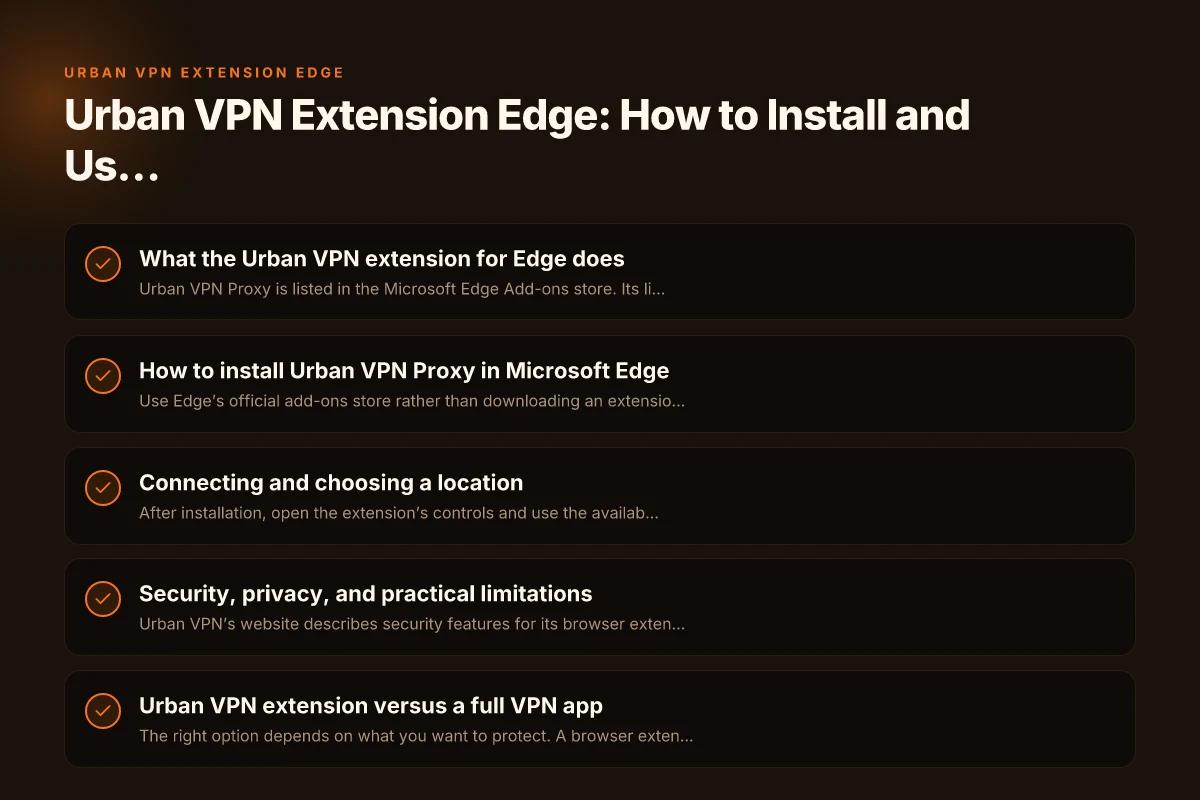
How to install Urban VPN Proxy in Microsoft Edge
Use Edge’s official add-ons store rather than downloading an extension from an unfamiliar site. The search result for the product identifies its listing as Urban VPN Proxy - Microsoft Edge Add-ons.
- Open Microsoft Edge and visit the Microsoft Edge Add-ons store.
- Search for Urban VPN Proxy.
- Check the publisher, listing details, permissions, and reviews.
- Select the install option and approve the browser’s prompt if you’re comfortable with the requested access.
- Open the extension from the Edge toolbar. If it isn’t visible, check Edge’s extensions menu and pin it if that option is available.
- Follow the extension’s on-screen steps to connect and select a location.
Before installing, read the permissions prompt carefully. Browser extensions can request access to information or activity on websites. Only proceed if the requested access and the provider’s privacy terms are acceptable to you.
Connecting and choosing a location
After installation, open the extension’s controls and use the available connection and location options. The exact interface can change as the extension is updated, so follow the labels shown in your current version rather than relying on screenshots from older guides.
| What you want to do | What to check |
|---|---|
| Connect through the extension | Confirm that the interface shows an active connection |
| Change your apparent location | Choose from the locations offered in the extension |
| Use a site that is region-restricted | Check whether the site permits VPN or proxy access |
| Protect traffic beyond Edge | Consider whether a desktop VPN is more appropriate |
Changing your apparent IP location is not the same as becoming anonymous. Websites may still identify you through account sign-ins, cookies, browser settings, or other signals. A VPN also does not prevent every kind of tracking or protect you from unsafe downloads and deceptive websites. AXGATE VPN Client: What It Is, How It Works, and When to Use It
Check the main steps for installing and using the extension
| Step | What to do | What to check |
|---|---|---|
| Find the extension | Search Edge Add-ons for Urban VPN Proxy | Confirm the product name |
| Install | Select Get and approve the prompt | Wait for Edge to finish |
| Open it | Select the extension in Edge | Pin it for easier access |
| Choose a location | Pick an available location | Confirm your selection |
| Connect | Use the extension’s connect control | Check that it shows connected |
| Browse | Open the sites you want to use | Traffic is routed through the proxy |
| Disconnect | Use the extension’s disconnect control | Check that it shows disconnected |
Compiled November 2026; check the provider's site for current details.
Security, privacy, and practical limitations
Urban VPN’s website describes security features for its browser extension, including protection intended to help shield browsing from phishing attempts, malware, and intrusive ads. Treat these as provider claims, not as a guarantee that every threat will be blocked. Keep Edge updated, use trusted security tools, and avoid entering sensitive information on sites you cannot verify.
Before using any free VPN extension, consider: SoftEther VPN: What It Is, How It Works, and Whether to Use It
- Privacy policy: Review what data may be collected, how it is used, and whether it is shared.
- Permissions: Decide whether the requested access makes sense for the extension’s purpose.
- Coverage: Check whether it protects only browser traffic or offers broader device protection.
- Reliability: A location may be slow, unavailable, or blocked by a particular site.
- Sensitive activity: Do not assume a VPN makes banking, work, or personal accounts risk-free.
A VPN can help alter the route your browser traffic takes, but it is only one part of online security. Strong, unique passwords, multifactor authentication, updated software, and careful browsing remain important.
Urban VPN extension versus a full VPN app
The right option depends on what you want to protect. A browser extension is convenient when your goal is limited to activity in Edge. A desktop VPN app may be more suitable when you want VPN coverage for other applications on your computer, though you should check the app’s specific coverage and settings.
Urban VPN also advertises a separate PC and laptop VPN product for Windows. That is distinct from installing the Edge extension. Don’t assume the browser add-on and desktop product behave identically or provide the same features. Check their current product pages and terms.
Decide whether the Urban VPN Edge extension fits your needs Proton VPN Free: Is It Really Free and Worth Using?
| Consideration | Extension | What it means |
|---|---|---|
| Browser-only protection | Supported | Applies to traffic routed through Edge |
| Whole-device coverage | No | Use a full VPN app for other apps |
| Location switching | Supported | Choose from available locations |
| Privacy expectations | Review the privacy policy | Understand data handling before use |
| Security needs | Limited to the extension’s scope | Do not assume it replaces device-wide protection |
| Ease of use | Simple browser controls | Manage it from Edge |
| Best for | Browser-only proxy use | A practical choice for limited needs |
| Consider another option if | You need wider coverage | Compare full VPN apps and their policies |
Compiled November 2026; check the provider's site for current details.
Recommendation
For a quick browser-based connection, the Urban VPN extension for Edge is straightforward to find in the Microsoft Edge Add-ons store. Install it only after reviewing the listing, permissions, and privacy policy, then confirm that it connects as expected. If you need protection for more than Edge, or plan to handle sensitive activity, compare a full-device VPN and its privacy terms before deciding.